
THE AIRIVO JOURNAL / HOW-TO GUIDE
A sharper scene starts with a few thoughtful adjustments.
The first evening with a projector is easier when you make one adjustment at a time. Find a suitable surface, bring the picture into focus, then decide how much color and sound you want around it. This guide follows the supplied AIRIVO BL-3D01 manual for the white 3D Galaxy Projector.
PLACE & FOCUS
Give the picture a clear surface.
CHOOSE & LAYER
Start with the scene, then add atmosphere.
LISTEN & FINISH
Pick the audio and set the timer.
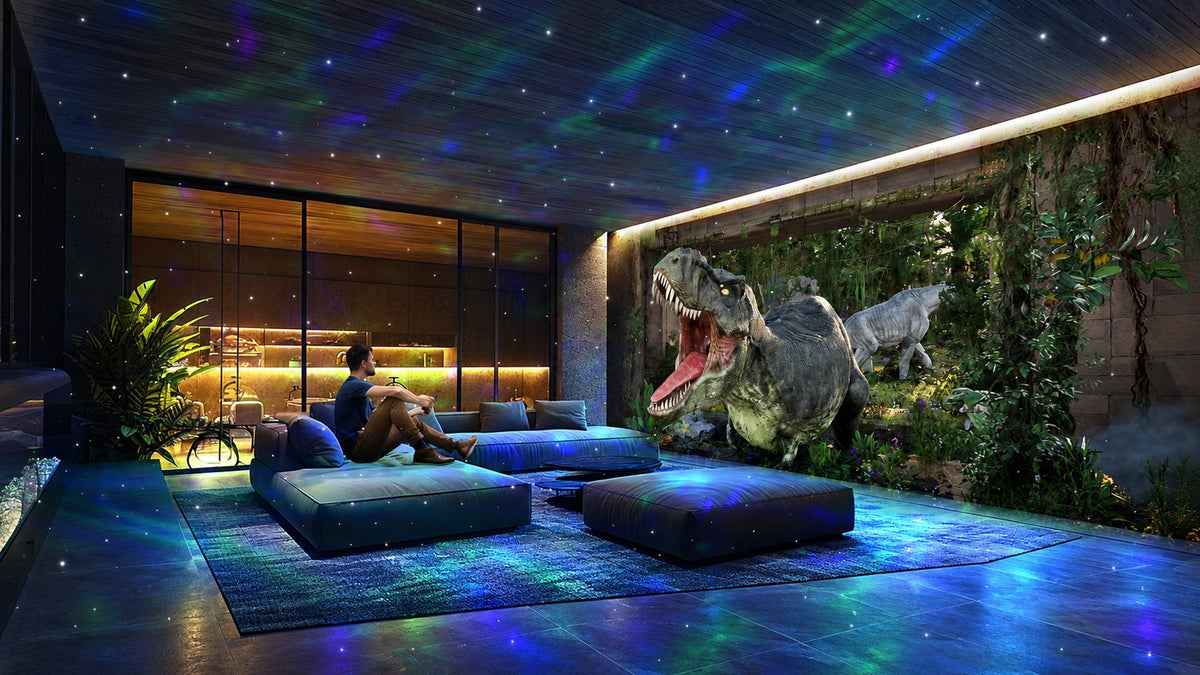
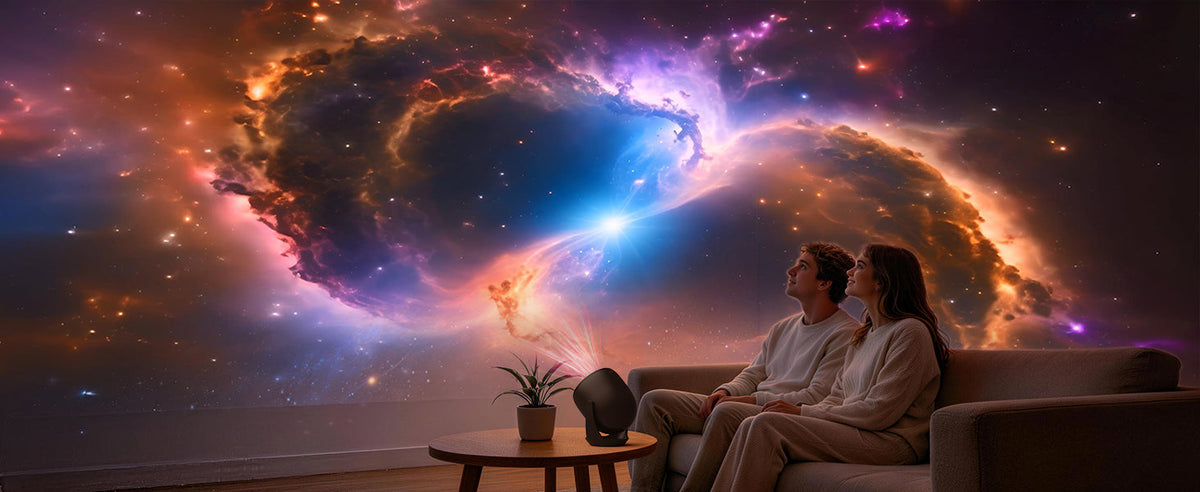
Lifestyle images are styled concept illustrations. Projected imagery appears on a surface; these scenes do not establish measured brightness, projection size, or floating physical effects.
01 / BEFORE YOU START
Get to Know the Projector Before Dimming the Room

Unpack the projector, supplied power adapter, remote, and user manual. Put the unit on a stable indoor surface near an outlet, with its ventilation openings exposed and its cable clear of walkways. Connect the included adapter to the projector and the wall outlet.
The front knob is both the power control and speaker-volume control: press it briefly to turn the projector on or off, and rotate it to change the volume. The focus wheel is a separate control on the rear. Finding both in ordinary room light makes the next steps easier.
The illustrated parts guide also identifies the main scene lens, Nebula Light lens, and Green Stars lens. Avoid direct eye exposure to the Green Stars lens. Keep the projector away from water, moisture, and high humidity.
02 / PLACEMENT & FOCUS
Use the Menu Text to Find a Sharper Picture

Choose a flat, light-colored wall or ceiling and start with the projector about 10-16 ft (3-5 m) away, as recommended in the manual. Use the stand to adjust the aim, then check the picture from where you plan to sit. A door frame, plant, or patterned surface can break up the image before focus even enters the picture.
Dim the room, open the 3D Scene Menu on the remote, and turn the focus wheel until the menu lettering is sharp. Text gives you a clearer reference than a moving scene. If you change the position or projection surface, check the focus again.
For the cleanest scene detail, begin with the 3D Scene by itself and leave Nebula Light and Green Stars off. Extra lighting layers are an atmosphere choice; bring them in after the basic picture works.
03 / CHOOSE A SCENE
Choose One Scene Before Exploring the Whole Library

After startup, the projector defaults to 3D Scene Only. Press Scene Menu on the remote, use the previous and next controls to browse, and press Play to confirm the scene you want. Next Scene lets you move directly to another built-in scene.
Choose Repeat One when you want to stay with the current visual, or Play All Scenes when you want the scenes to run in sequence. For a story or conversation, repeating one background can be easier to follow than continuous changes.
The scenes have their own background audio when Scene Audio mode is active. You can decide whether to keep that audio or switch to Bluetooth playback in the next steps. Theme examples are invitations to explore, rather than a reason to keep every effect on.
04 / LIGHT LAYERS
Treat Scenes, Nebula Light, and Green Stars as Separate Choices

The main scene, flowing Nebula Light, and Green Stars are three different visual layers. The Effect Combination control cycles through 3D Scene, 3D Scene plus Green Stars, Green Stars Only, and Projection Off. Nebula Light can be switched on independently with its own lighting controls.
To use all three together, choose 3D Scene plus Green Stars and then turn on Nebula Light. To simplify the image again, switch the projector off and back on to return to its default 3D Scene Only mode. Projection Off stops the projection effects while the unit remains powered; the power indicator stays lit.
Nebula brightness has levels 0-4, with level 0 switching that light off. The brightness button does not dim Green Stars: their brightness is not user-adjustable, and gentle pulsing is normal. The speed control offers Fast, Slow, and Static for star and nebula motion; use it when you want a quieter-looking background.
05 / BLUETOOTH & MUSIC
Choose the Audio, Then Try Music Sync

Choose Your Audio Source
For your own playlist, switch from built-in scene audio to Bluetooth mode using the remote or the projector's audio-mode button. A confirmation tone indicates Bluetooth mode. Open Bluetooth settings on your phone or tablet, select BL-3D01, and start playback.
Use the remote's volume controls or turn the device's volume knob to set the speaker level. Bluetooth handles audio playback; use the projector or remote controls for the visual settings. If another device is already connected, disconnect it before trying to pair a different phone.
Try Sound-Reactive Lighting

Music Sync is a separate sound-reactive lighting function. Its built-in microphone detects sound and makes Nebula Light change colors and Green Stars pulse. The reactive controls apply to Nebula Light and Green Stars. Very quiet playback may not trigger the response reliably, so follow the manual's moderate-to-high-volume guidance while keeping the listening level comfortable.
If Bluetooth disconnects after you stop playing audio, reconnect from the phone's Bluetooth settings. The manual describes automatic disconnection after about 10 minutes of audio inactivity.
06 / TIMERS
Set an End Time Before You Settle In

Use the remote's 1H or 2H button to choose a one-hour or two-hour automatic shutoff. Cancel Timer cancels that selected timer. The remote diagram identifies those buttons along with scene, audio, playback, and lighting controls.
The projector also automatically turns off after six hours of continuous use. Cancelling a one-hour or two-hour timer does not remove that six-hour behavior. If the device turns off later in a long session, check how long it has been running before assuming there is a fault.
When the evening is finished, switch the unit off. Keep the remote somewhere easy to find for the next session, rather than balancing it on the projector or blocking a ventilation opening.
07 / QUICK FIXES
Check the Simple Things Before Changing Everything

If the picture looks soft, return to the recommended distance, open the scene menu, and focus on the lettering. Reduce ambient light and switch off extra lighting layers while judging scene detail. Make one change at a time so you can see which adjustment helps.
If Nebula Light seems to be missing, check whether its brightness is set to level 0. Raise the level before assuming that the light is not working. If scenes keep changing, select Repeat One; if the same scene keeps repeating, choose Play All Scenes.
Some warmth and cooling-fan noise are normal during scene playback. Keep the vents clear and position the unit on a suitable stable surface. An unobstructed ventilation grille matters more than hiding the device among cushions or decorative objects.
For Bluetooth pairing trouble, check that Bluetooth is enabled, select BL-3D01, and disconnect a device that is already paired. Restart Bluetooth on the phone or tablet and restart the projector if needed. Keep the manual available for care instructions and issues beyond these basic checks.
08 / YOUR FINISHED SETUP
Keep the Settings That Fit Your Evening

Once the image is sharp, choose the scene, extra lighting, sound, and timer around what you plan to do. Keep a stretching area clear of the unit and its cable, or leave a separate task lamp available for reading. Ambient projection does not replace the light needed to see a page or work surface clearly.
The manual describes scene auto-resume while the projector remains plugged in: the next startup returns to 3D Scene Only and resumes the last selected scene. Do not expect every lighting and audio setting to carry over, especially after unplugging or a power interruption.
When you want ideas for what to do with the setup, the companion article 3D Projector Room Ideas: One Room, Many Worlds explores family time, quiet corners, and seasonal gatherings. Use this guide for the controls, then let the occasion choose the atmosphere.
READY FOR YOUR FIRST SCENE?
Explore the White AIRIVO 3D Galaxy Projector
Start with a clear surface and a focused picture, then make the atmosphere your own. Visit Amazon for current product details and availability.
Explore AIRIVO on Amazon →Guide based on the supplied AIRIVO BL-3D01 user manual for this model. Keep the manual available for complete operating and care instructions.
Frequently Asked Questions
How do I sharpen the projected scene?
Place the projector about 10-16 ft (3-5 m) from a flat, light-colored wall or ceiling. Open the 3D Scene Menu and turn the focus wheel until the menu text is sharp. Dim the room and switch off the Nebula Light and Green Stars when you want the clearest scene detail.
Can I adjust the brightness of every effect?
The brightness control applies to the Nebula Light, with levels 0-4; level 0 switches that light off. Green Stars brightness is not user-adjustable. Their gentle pulsing is normal operation.
Why does Bluetooth disconnect when I stop playing music?
Bluetooth may disconnect automatically after about 10 minutes without audio playback. Reconnect to BL-3D01 in your phone or tablet's Bluetooth settings, then start playback again.
How do I keep one scene playing instead of cycling through scenes?
Select Repeat One on the remote to repeat the current 3D scene. Select Play All Scenes when you want the built-in scenes to play in sequence.
Why does the projector turn off even without a 1-hour or 2-hour timer?
The projector automatically shuts off after 6 hours of continuous use. Cancel Timer cancels a selected 1-hour or 2-hour timer; it does not remove the 6-hour automatic shutoff.
Does the projector remember my settings after I unplug it?
The manual describes scene auto-resume only while the projector remains plugged in. On the next startup in that condition, it returns to 3D Scene Only and resumes the last selected scene. Previous settings may not be retained after unplugging or a power interruption.
Share:
3D Projector Room Ideas: One Room, Many Worlds